GETTING STARTED
Add and arrange clocks
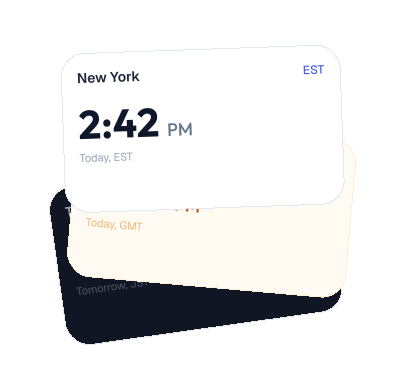
Save a city, reorder your list and move every clock from a shared reference time.
CLOCKER SUPPORT
Quick answers for Clocker, widgets, city search and iCloud sync.Quick answers for Clocker, Home Screen widgets, city search and iCloud sync.
BROWSE HELP TOPICS
GETTING STARTED
Save a city, reorder your list and move every clock from a shared reference time.
WIDGETS
Add the small, medium or large widget and use planning controls without opening the app.
ICLOUD SYNC
Use the same Apple Account to keep saved clocks and place details consistent across devices.
CITY SEARCH
Search the built-in offline catalog or connect briefly to download the broader city catalog.
QUICK ANSWERS
Open Clocker once after installing or updating it. Then touch and hold the Home Screen, choose Edit, select Add Widget and search for Clocker. If it still does not appear, restart the iPhone and try again.
Open Clocker and confirm the clocks are saved. iOS controls WidgetKit refresh timing, so a widget can take a short time to update. Removing and adding the widget again can also refresh its configuration.
Confirm both devices use the same Apple Account, iCloud Drive is enabled and Clocker is allowed to use iCloud. Keep the app open briefly on each device while the first sync completes.
Clocker keeps a compact catalog on the device for offline use. Connect to the internet and search again so the extended city catalog can download or update. Once saved, the clock continues to work offline.
Check that the intended city and time zone are selected and that Date & Time is set automatically in iOS Settings. If a daylight-saving change is recent, update iOS and reopen Clocker.
CONTACT SUPPORT
Include your iOS version, Clocker version and the steps that led to the problem. Please do not include passwords, Apple Account details or other sensitive information.
Contact supportOr email clocker@boldtechlabs.com